
What it does.
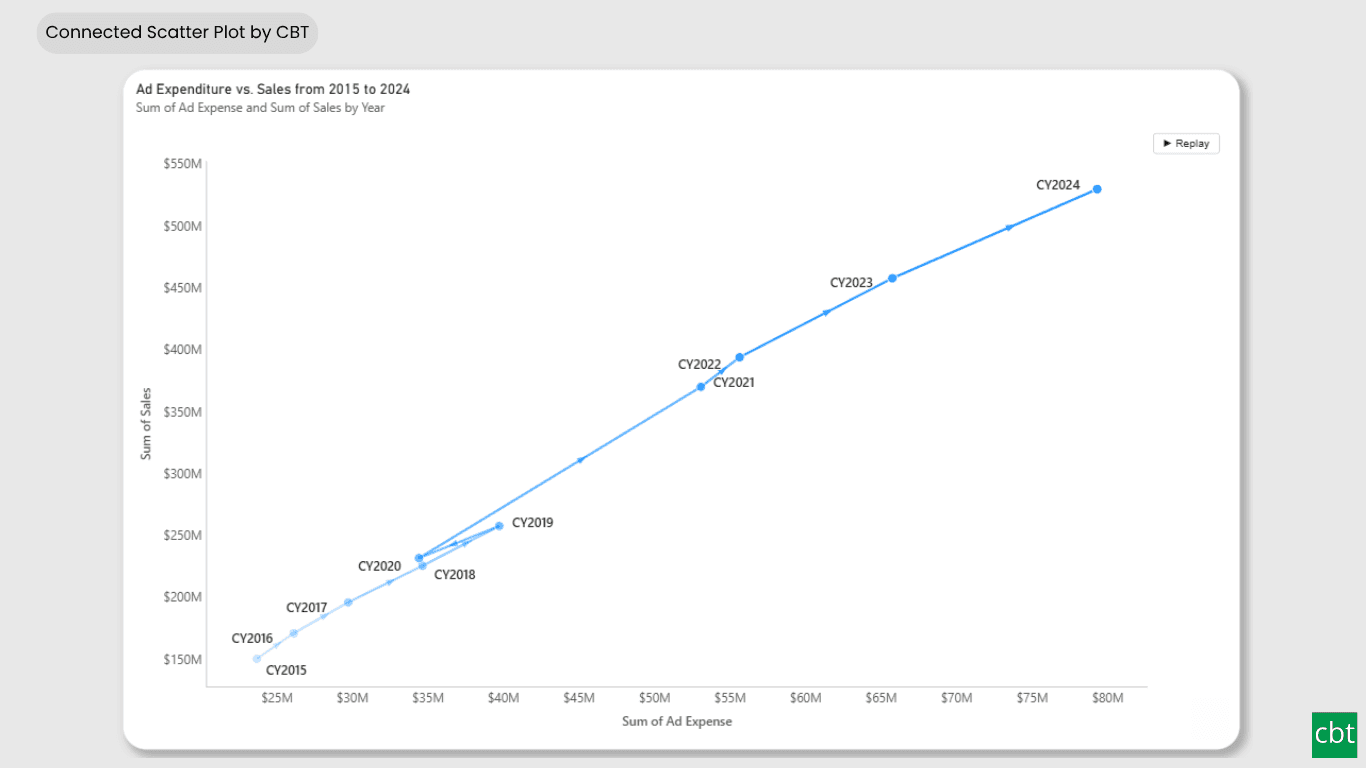
A scatter plot shows where things are, but not how they got there. Inflation against unemployment, ad spend against revenue, cost against output: each year is only a dot, and the story is the route between the dots. A line chart shows each measure separately, so the relationship between the two is lost. The Connected Scatter Plot puts the two measures on the axes and draws the journey.
A dedicated Sequence field, such as a year, a date or a text period like CY2015, decides the order in which points are joined. Arrows show which way the path runs, a fading trail makes the latest movement the strongest, and labels name the points that matter: turning points, the first and the last. A Legend field gives each group its own path and color, and a Small multiples field splits the chart into a grid of panels on one shared scale.
The visual works for one path or many. With a Legend field, each store, region or product draws its own path with its own color and legend entry. With Small multiples, each panel shows one group, for example an age band, with the same colors and the same scale so panels compare fairly. A Replay button redraws the path from the first point to the last, which is useful when presenting.
Power BI's built-in scatter chart does not join points into a path. This visual adds the connection, the direction and the time order, and makes the lines, arrows, markers, labels, axes and colors fully configurable. Its format pane follows Power BI's own wording and ranges, and it reads currency and percentage formats straight from the data model.
Use Cases • Economic indicators over time, such as inflation against unemployment by year • Marketing efficiency, such as ad spend against revenue by store or campaign • Company or region trajectories, such as market share against growth • Operations, such as cost against throughput by month • Comparing groups side by side in small multiples, such as age bands or segments • Any pair of measures where the order of the points tells the story
What ships today, what’s next.
Available now16 capabilities
- Connected scatter plot: two measures joined in sequence order
- Dedicated Sequence field; numbers, dates or text such as CY2015
- Line width, transparency, style; Linear, Smooth or Step
- Direction arrows with adjustable size
- Fading trail with oldest transparency control
- Eight marker shapes, start ring, end square, range scaling by Size
- Smart data labels: Auto, turning points, first and last, all
- Landing page with quick-start steps
- Legend with one path per value; series labels at path ends
- Small multiples up to 6 by 6 on one shared scale, with optional shared axes or Scale to fit
- Logarithmic scale, display units and custom units on both axes
- Smooth Replay animation with adjustable duration
- Selection, legend selection, cross-filtering, context menu
- Rich tooltips with panel, sequence and extra measures
- Currency and percentage format detection
- Data colors that follow the report theme, with conditional formatting (fx) for points and Legend series
On the roadmap3 planned
- Reference lines and annotations
- A scrub slider for Replay
- color by time
Other custom visuals.
25 more visuals in the catalogue. All free to download.
Error Bar
A dot-and-whisker chart for Power BI. Each point shows its value with a whisker for the uncertainty, give it bounds, or hand it raw rows and it computes the confidence interval itself.
Learn more →Dual Hierarchy Decomposition Tree Pro
DAX-driven KPI tree with dual-axis drill-down, per-KPI colors, icons, and Microsoft-certified Pro features.
Learn more →Advanced Sankey Diagram
Interactive Power BI Sankey diagram for visualizing multi-stage flow data, with automatic node-to-ribbon color gradients and rule-based conditional formatting.
Learn more →Sparkline KPI Card
KPI Card with Sparkline for Power BI that displays KPI values, previous period comparisons, targets, variance, trend indicators, and interactive sparklines in a compact, business-ready visual.
Learn more →Cluster Analysis Chart
A scatter plot that groups points into clusters by similarity using K-Means, DBSCAN, or Hierarchical clustering. Shows centroids, hulls, ellipses, outliers, and dendrograms, with no R or Python.
Learn more →Lollipop Chart
Compare one value across many categories with clean stems and markers on a shared scale, and track each category against its target.
Learn more →Bullet Chart
Compare performance against multiple targets with qualitative bands, variance, and small multiples.
Learn more →Advanced Gantt Chart
Interactive Gantt chart for visualizing hierarchical project schedules, with automatic parent task rollups, dual baseline and actual timeline bars, and rule-based conditional formatting.
Learn more →Radial Histogram
Interactive radial histogram, wedges radiating from a center point, area-correct by default.
Learn more →Pareto Chart
Sort causes largest first, accumulate them, and mark the vital few that reach your threshold.
Learn more →Win Loss Chart
A win/loss sparkline for Power BI. Each period is one equal-sized mark above or below a baseline, so streaks and form are visible at a glance across many rows at once.
Learn more →Waffle Chart
Show part-to-whole proportions, track progress toward targets, or break totals by category.
Learn more →Histogram
Interactive histogram for visualizing the distribution of a continuous measure, with flexible binning, weighted bin heights, and built in statistical overlays.
Learn more →Dual Axis Bar & Column Chart
Plot two measures on independent scales without dropping in a separate combo chart.
Learn more →Dual Hierarchy Decomposition Tree
Up to four KPIs per card across two hierarchy axes, with DAX-driven status colours.
Learn more →Multi KPI Decomposition Tree
Decompose up to five measures per node, with stacked bars on every branch.
Learn more →Arabic Matrix Table
Right-to-left matrix with Arabic labels, hierarchical rows, subtotals and grand totals.
Learn more →Arabic Stacked Bar Chart
RTL-native stacked bars with Arabic number units, small multiples and cross-filtering.
Learn more →Arabic Stacked Column Chart
RTL-native stacked columns matched to the Arabic Bar visual for consistent dashboards.
Learn more →Arabic Waterfall Chart
Sequential value walk for Arabic dashboards — variance, build-up and bridge analyses.
Learn more →Dumbbell Chart
Two markers per category on a shared scale, connected by a line that makes the gap immediately visible.
Learn more →Counts Plot
Visualise data distribution with dots scaled by frequency across category lanes.
Learn more →Jitter Plot
Show every data point with jitter or beeswarm layout for distribution analysis.
Learn more →Auto Single Select Slicer
Smart Power BI slicer with automatic first-value selection — reports never load with an empty filter.
Learn more →AutoSelect Slicer
Smart Power BI slicer with automatic selection across single-select and multi-select scenarios.
Learn more →Need a custom Power BI visual built for your reporting?
Thirty minutes with a senior BI consultant. We’ll walk your report, scope the visual, and tell you whether a build makes sense.