
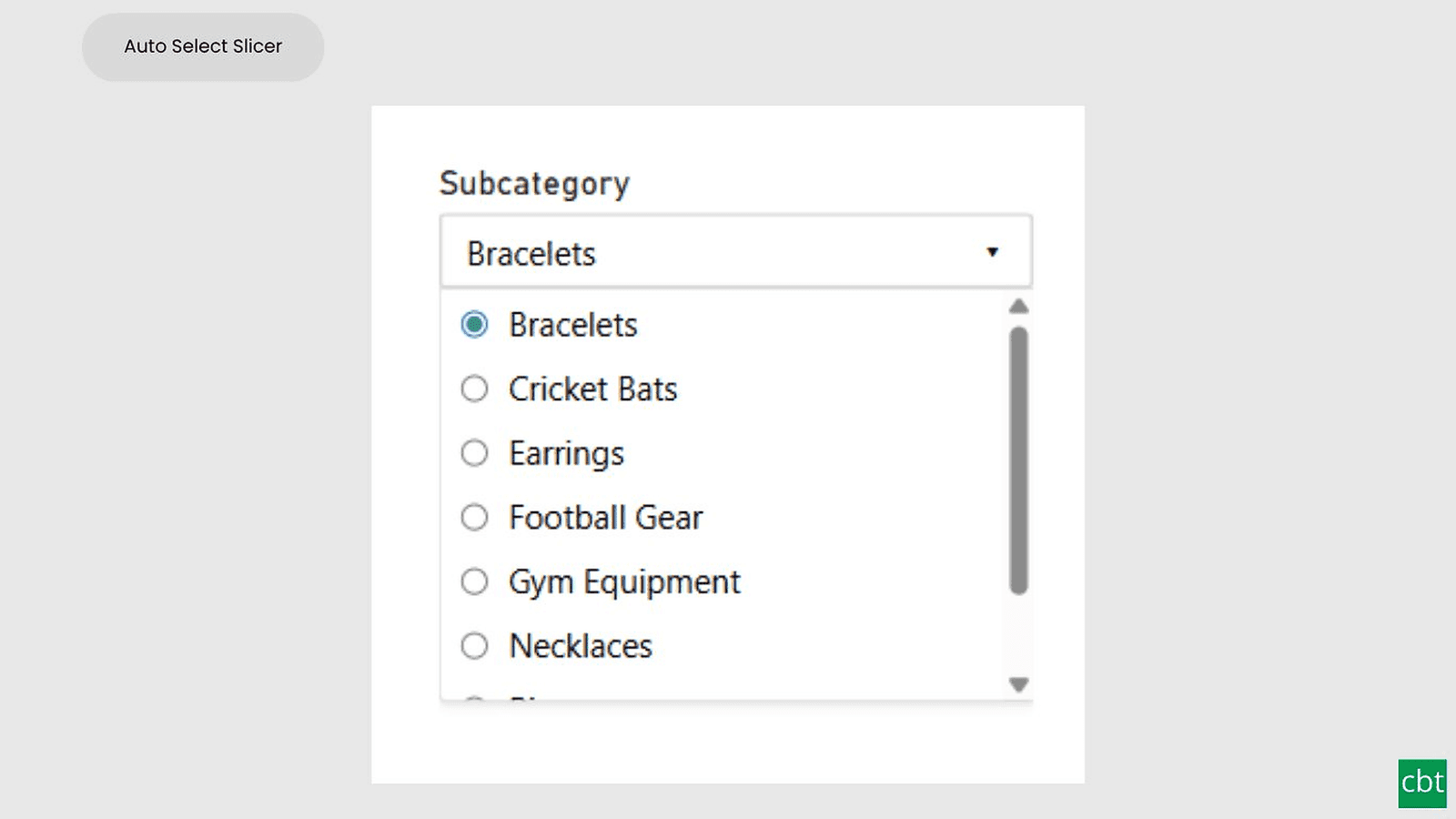
What it does.
Business users frequently work with reports where slicers need a meaningful default state instead of starting empty. Users often need the first available value selected automatically, or all values selected initially depending on reporting requirements. Traditional slicers require manual interaction and can create inconsistent report experiences, especially when filters change dynamically.
AutoSelect Slicer solves this problem by introducing intelligent automatic selection behavior. In Single Select mode, the visual can automatically select the first available value on initial load and maintain a valid selection even when filters affect available values. In Multi Select mode, users can optionally autoselect all values during initial load for a complete dataset view.
The visual supports Dropdown, List, and Tile layouts with rich formatting options and customizable behavior. A custom slicer header includes title text, font styling, color settings, and summary display options. The visual supports Power BI interactions such as cross-filtering and maintains selections dynamically when connected visuals update the available dataset.
Formatting options such as font size, bold, italic, underline, padding, borders, background colors, and styling behaviors apply consistently across all slicer elements. The visual integrates naturally with Power BI and improves report usability by reducing repetitive user interaction while maintaining flexibility.
What ships today, what’s next.
Available now14 capabilities
- Auto-select first value support for Single Select mode
- AutoSelect all values support for Multi Select mode
- AutoSelect all values by default
- Dropdown, List, and Tile layouts
- Single Select and Multi Select support
- Select All support with configurable behavior
- Selection persistence after filtering updates
- Custom slicer header with title, text, font color, and show summary
- Dynamic summary display for selected values
- Background, font, border, and padding customization
- Bold, italic, and underline support across all visual elements
- Cross-filtering and slicer-to-slicer interaction support
- Responsive behavior with Power BI native interactions
- User-friendly formatting pane configuration
Other custom visuals.
23 more visuals in the catalogue. All free to download.
Waffle Chart
Show part-to-whole proportions, track progress toward targets, or break totals by category.
Learn more →Histogram
Interactive histogram for visualizing the distribution of a continuous measure, with flexible binning, weighted bin heights, and built in statistical overlays.
Learn more →Dual Hierarchy Decomposition Tree Pro
DAX-driven KPI tree with dual-axis drill-down, per-KPI colors, icons, and Microsoft-certified Pro features.
Learn more →Advanced Sankey Diagram
Interactive Power BI Sankey diagram for visualizing multi-stage flow data, with automatic node-to-ribbon color gradients and rule-based conditional formatting.
Learn more →Sparkline KPI Card
KPI Card with Sparkline for Power BI that displays KPI values, previous period comparisons, targets, variance, trend indicators, and interactive sparklines in a compact, business-ready visual.
Learn more →Cluster Analysis Chart
A scatter plot that groups points into clusters by similarity using K-Means, DBSCAN, or Hierarchical clustering. Shows centroids, hulls, ellipses, outliers, and dendrograms, with no R or Python.
Learn more →Lollipop Chart
Compare one value across many categories with clean stems and markers on a shared scale, and track each category against its target.
Learn more →Bullet Chart
Compare performance against multiple targets with qualitative bands, variance, and small multiples.
Learn more →Advanced Gantt Chart
Interactive Gantt chart for visualizing hierarchical project schedules, with automatic parent task rollups, dual baseline and actual timeline bars, and rule-based conditional formatting.
Learn more →Radial Histogram
Interactive radial histogram, wedges radiating from a center point, area-correct by default.
Learn more →Pareto Chart
Sort causes largest first, accumulate them, and mark the vital few that reach your threshold.
Learn more →Win Loss Chart
A win/loss sparkline for Power BI. Each period is one equal-sized mark above or below a baseline, so streaks and form are visible at a glance across many rows at once.
Learn more →Dual Axis Bar & Column Chart
Plot two measures on independent scales without dropping in a separate combo chart.
Learn more →Dual Hierarchy Decomposition Tree
Up to four KPIs per card across two hierarchy axes, with DAX-driven status colours.
Learn more →Multi KPI Decomposition Tree
Decompose up to five measures per node, with stacked bars on every branch.
Learn more →Arabic Matrix Table
Right-to-left matrix with Arabic labels, hierarchical rows, subtotals and grand totals.
Learn more →Arabic Stacked Bar Chart
RTL-native stacked bars with Arabic number units, small multiples and cross-filtering.
Learn more →Arabic Stacked Column Chart
RTL-native stacked columns matched to the Arabic Bar visual for consistent dashboards.
Learn more →Arabic Waterfall Chart
Sequential value walk for Arabic dashboards — variance, build-up and bridge analyses.
Learn more →Dumbbell Chart
Two markers per category on a shared scale, connected by a line that makes the gap immediately visible.
Learn more →Counts Plot
Visualise data distribution with dots scaled by frequency across category lanes.
Learn more →Jitter Plot
Show every data point with jitter or beeswarm layout for distribution analysis.
Learn more →Auto Single Select Slicer
Smart Power BI slicer with automatic first-value selection — reports never load with an empty filter.
Learn more →Need a custom Power BI visual built for your reporting?
Thirty minutes with a senior BI consultant. We’ll walk your report, scope the visual, and tell you whether a build makes sense.